


Minecraft Education
4.110.49K Reviews
App Specs
- Version
- 1.26.32.0
- Updated On
- License
- Free
- Downloads
- 50,000,000+
- Developer
- Mojang
- Categories
- Education
- Platform
- Android, iOS
Screenshots
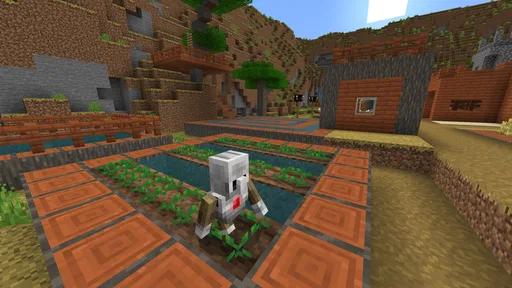
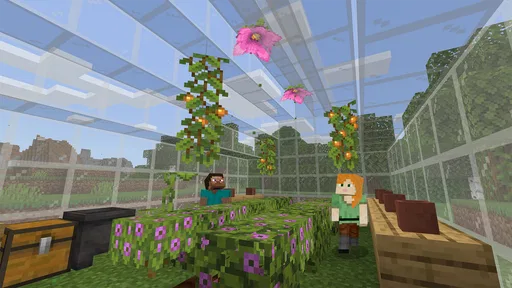
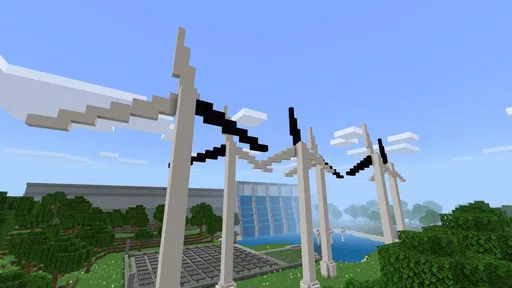
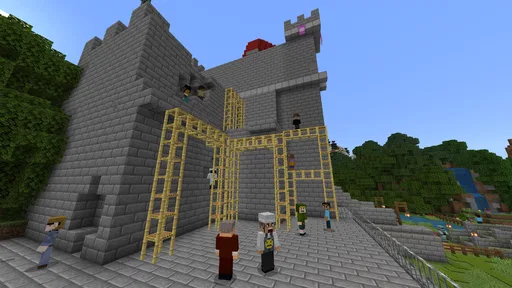
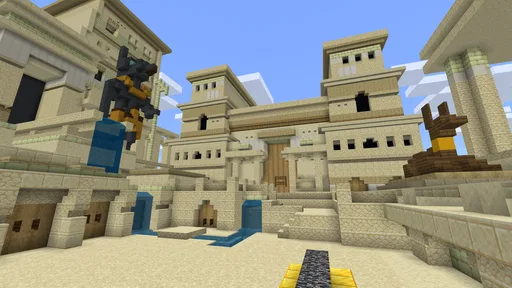
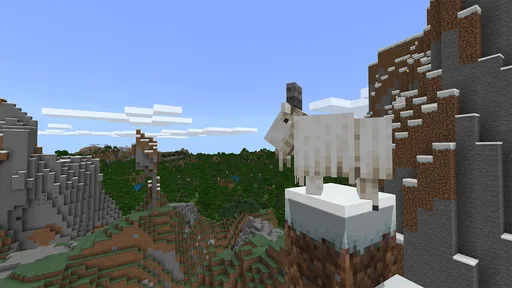
 Analysis by AppCompare
Before I decide whether I’d trust a learning app with a child’s time and work, I separate what I can see in the experience from what I’d need an adult or school to check. Minecraft Education is an education-focused app from Mojang, built around learning activities in a familiar block-based world. Its appeal is easy to understand: students can make and explore things instead of only reading about them. My more cautious view is that a creative setting is not, by itself, proof of a particular privacy practice or account arrangement, so I would treat those questions as part of setup rather than assume the game answers them for me.
What the learning format does well
In my experience, the main strength is that a lesson can give students something concrete to discuss. A model of a habitat, historical place, or designed object gives a group a shared point of reference: classmates can explain what they built, what they changed, and why. That can make abstract ideas easier to approach, especially for students who find a blank worksheet hard to get started on. It also gives a teacher a chance to see a learner’s reasoning through the choices they make in a project, not just through a final written answer.
This does not mean the app automatically teaches a topic. The learning still depends on the question an adult sets, the time available, and how students reflect on what they made. I would use a clear prompt—such as asking a learner to represent a process and explain the decisions behind it—rather than handing over open-ended building time and hoping a lesson emerges. The game world is most useful when making something is a route into thinking, not a substitute for explaining or checking understanding.
Trust starts with the person managing access
For a family, the practical starting point is to establish who will use the app and how access is being arranged before a child begins a session. For a school, that usually means asking the person responsible for the classroom setup what account or sign-in steps students are expected to follow. I would not treat a familiar game interface as a reason to skip those ordinary checks. A child may be focused on the building activity while an adult is the one who needs to understand the access choices.
The sensible approach is to look at the choices actually shown during setup and use, and to ask the school or account manager about any decision that is not clear. I avoid making assumptions about permissions, collection, or sharing based on the app’s educational purpose alone. If a learner is using a device shared with family members, I would also make sure they know which profile or account is active and where their work is meant to go. That small pause can prevent confusion later, especially when a project is being used for school.
Where the camera and sharing deserve attention
The camera tool can help students record a project as it develops, which is useful when the finished build is too large to explain at a glance. In a classroom, a picture can support a short presentation or help a teacher follow the thinking behind a design. But documenting work also makes it worth pausing over what is in the frame and who will see it. I would encourage students to capture the build itself, check the image before sharing, and follow the teacher’s directions about where class work belongs.
That is a practical habit, not a claim that the camera creates a specific privacy risk. The important point is user awareness: students should understand the difference between making something inside an activity and choosing to show a record of it to someone else. Younger learners may need an adult to guide that choice. If the intended audience or sharing route is unclear, I would wait and ask rather than guess.
Worth Reading Before You Choose

Flipboard Shows What News Apps Must Do Beyond the Feed

Switching to Android Auto Means Rethinking Your Driving Routine

Google Calendar Makes a Crowded Week Easier to Manage

Ludo King Makes the Most of the Minutes Between Plans

Baby Panda World Brings Quick Play to Modern Phones, but Its Game Library Feels Busy

ESPN’s Live Game View Makes Following Close Games Easier
Good fit, with a few conditions
This is a stronger match for learners who enjoy making things, trying ideas, and explaining their choices than for someone who wants a quick, conventional lesson with a fixed sequence of questions. It can also suit teachers who are ready to connect a virtual project to a learning goal and help students work through that goal together. The store classifies it as an Education app, gives it an Everyone 10+ age rating, and lists it as free. Those details help frame the audience and cost, but they do not replace a family’s or school’s judgment about whether its activities suit a particular child.
I would be more cautious if a learner becomes absorbed in building but struggles to connect the activity back to the subject, or if the adult supervising cannot spare time to set expectations and review the work. In those situations, a focused reading, a direct practice activity, or a teacher-led explanation may be a better fit. I also would not choose this as a privacy-sensitive way to share personal material: the camera and any sharing choices should be used only with a clear understanding of the intended audience.
A realistic classroom routine
Imagine a teacher introducing a topic, giving pairs a defined building task, and asking each pair to explain one design choice at the end. Students can plan briefly, build, take a project image if the teacher wants documentation, and then use that image to support their explanation. That routine gives the creative part a purpose and keeps the work reviewable. It also creates natural moments to check that students are using the expected account and following the class’s directions about recording and showing work.
For a parent using it at home, I would keep the first session small: agree on what the child is trying to learn, let them work on one manageable project, and ask them to talk through the result afterward. That conversation is a useful test of whether the app is helping them think or simply holding their attention. If the child can explain a choice or connect the build to the topic, the activity has given you something more than screen time.
How it compares with more conventional learning apps
Compared with a quiz or flashcard app, Minecraft Education gives more room for construction and discussion, but it is less naturally suited to quick repetition of facts. Compared with a standard game, its educational value depends more heavily on the activity and the adult’s framing. That trade-off matters: students who learn by making and collaborating may find the open-ended format motivating, while someone who wants immediate, tightly structured practice may do better with a focused subject app or a teacher’s usual materials.
For educators, the key question is not whether a virtual world is more exciting than a worksheet. It is whether the project gives students a useful way to show understanding that would otherwise be hard to see. I would choose it for a task where designing, comparing, or explaining a model matters; I would not add it simply to make every lesson look more entertaining. Keeping that distinction clear helps protect class time and makes the app’s creative strengths easier to use well.
Useful details before getting started
Mojang released the app on July 24, 2020, and its current version is 1.21.93.1, with Android 8.0 listed as the minimum operating system. It has a 4.1 average from around 125,000 ratings, alongside about 9,200 written reviews and more than 10 million installs. I read those figures as a sign that many people have tried it, not as a guarantee that every classroom workflow or device will feel smooth. The app is free, which makes trying it easier, but the practical value still depends on whether the learning activity suits the student and how access is managed.
If you are deciding whether it will work for a child, I would first ask: who is setting up access, what is the learning goal, and who will review any images or work the student chooses to share? Those questions are more useful than assuming every feature is appropriate in every setting. If a school is involved, its instructions should guide the classroom use; at home, an adult can set the boundaries and help the child stay focused on the task.
Exploring the World of Learning
When I first fired up Minecraft Education, I was curious to see how it would stand out from the classic version we all know and love. Right off the bat, the app dives into a rich world designed to engage students in a way that traditional learning environments might not. It’s like school, but with a twist of pixelated magic.
The app is packed with lessons across various subjects, from science and technology to language arts and history. It's a creative playground that encourages exploration while sneaking in some solid learning. And let me tell you, watching students collaborate on projects in a virtual world is something special.
Features That Stand Out
One of the coolest features of Minecraft Education is the built-in camera. It allows students to document their work, snapping pictures of their projects, which they can later share with teachers and classmates. It’s like bringing a scrapbook to life!
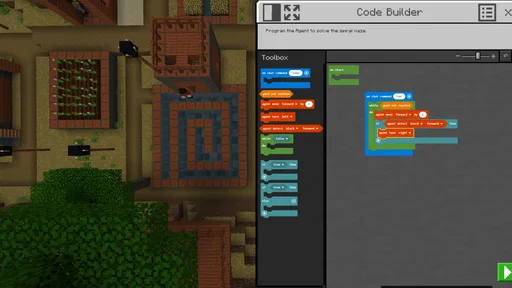
Another handy tool is the Code Builder. For anyone interested in coding, this feature is a game-changer. It introduces students to the basics of programming in a way that’s fun and interactive, making it a fantastic resource for budding developers.
"Learning through play has never looked so enticing!"
Why It's a Game-Changer
As someone who’s navigated both the gaming and education worlds, I can confidently say this app is a fantastic blend of both. It doesn’t just teach—it inspires. The collaborative aspect encourages students to work together, fostering communication skills that are vital in today’s world.
Plus, the adaptability of the app means educators can tailor experiences to suit their curriculum needs. Whether it’s building ancient civilizations or modeling ecosystems, the sky's the limit. It’s a versatile tool that adapts to different learning styles, making education accessible and fun.
Final Thoughts
So, is Minecraft Education worth the download? Absolutely. It's a refreshing take on learning that makes education engaging and interactive. Whether you're a teacher looking for innovative ways to connect with your students or a parent seeking educational tools that don’t feel like work, this app is a stellar choice.
In the end, it’s not just about breaking and placing blocks; it's about building knowledge one pixel at a time. So go ahead, dive in, and let your learning adventure begin!
Pros
- Engages students with interactive learning.
- Supports collaborative projects and teamwork.
- Offers a wide range of creative tools.
- Adapts to various educational subjects easily.
- Regular updates keep content fresh.
Cons
- Requires a stable internet connection.
- May have a steep learning curve initially.
- Limited device compatibility in some regions.
- Subscription model might be costly for schools.
- Needs supervision to avoid distractions.
FAQs for Minecraft Education
What is Minecraft Education and who is it for?
Minecraft Education is a version of the popular game Minecraft, tailored specifically for educational purposes. It is designed for use in classrooms to facilitate learning through interactive and immersive experiences. Teachers can use it to teach subjects like math, history, and coding, making it ideal for students from elementary to high school.
How does Minecraft Education support learning?
Minecraft Education supports learning by providing a platform where students can engage in problem-solving, creativity, and collaboration. It includes features like Classroom Mode, which allows teachers to manage settings, communicate with students, and monitor progress, ensuring a structured learning environment. The game also includes educational resources and lesson plans aligned with curriculum standards.
What devices are compatible with Minecraft Education?
Minecraft Education is compatible with Windows, macOS, and iPad devices, ensuring accessibility across a wide range of platforms. It requires an active internet connection and a Microsoft account for login. Schools can also manage device compatibility by using specific system requirements and ensuring all necessary updates are installed.
Is there a cost associated with using Minecraft Education?
Yes, Minecraft Education is not free, but it is available through a subscription model. Schools and educators can purchase annual licenses, and pricing may vary based on the number of users and region. Some schools might have the cost covered by educational grants or district funds, making it more accessible to students.
How can teachers integrate Minecraft Education into their curriculum?
Teachers can integrate Minecraft Education into their curriculum by utilizing its extensive library of lesson plans and educational resources. These resources cover various subjects and are designed to align with educational standards. Teachers can also customize and create their own lessons, using Minecraft’s environment to simulate real-world scenarios and foster interactive learning.


